
Identities & Security
Advanced credential management and encryption architecture
Security is the primary responsibility of any SSH client. Netcatty's Keychain is designed to balance military-grade encryption with the operational flexibility needed by DevOps professionals.
This guide explores the architecture of Identities, the specifics of Key Management, encryption standards, and enterprise integration via Certificates.
The Identity Architecture
In early SSH clients, credentials were often tied to specific connections. You saved a password inside the config for "Server A". If you had 100 servers and changed your password, you had to edit 100 entries.
Netcatty decouples Access (The Host) from Authentication (The Identity).
The "Many-to-Many" Model
- Identities exist globally in the Keychain.
- Hosts reference an Identity by ID.
- One Identity can be used by Infinite Hosts.
This enables the concept of "Role-Based Identities":
Identity: Personal Root(Your personal key) -> Used by 50 dev serviers.Identity: Emergency Glass(A shared high-privilege key) -> Used by 10 prod servers.Identity: Read-Only(A scoped service account) -> Used by 200 monitoring nodes.
Key Management
The Keychain supports the full spectrum of modern SSH authentication methods.
1. SSH Keys (The Gold Standard)
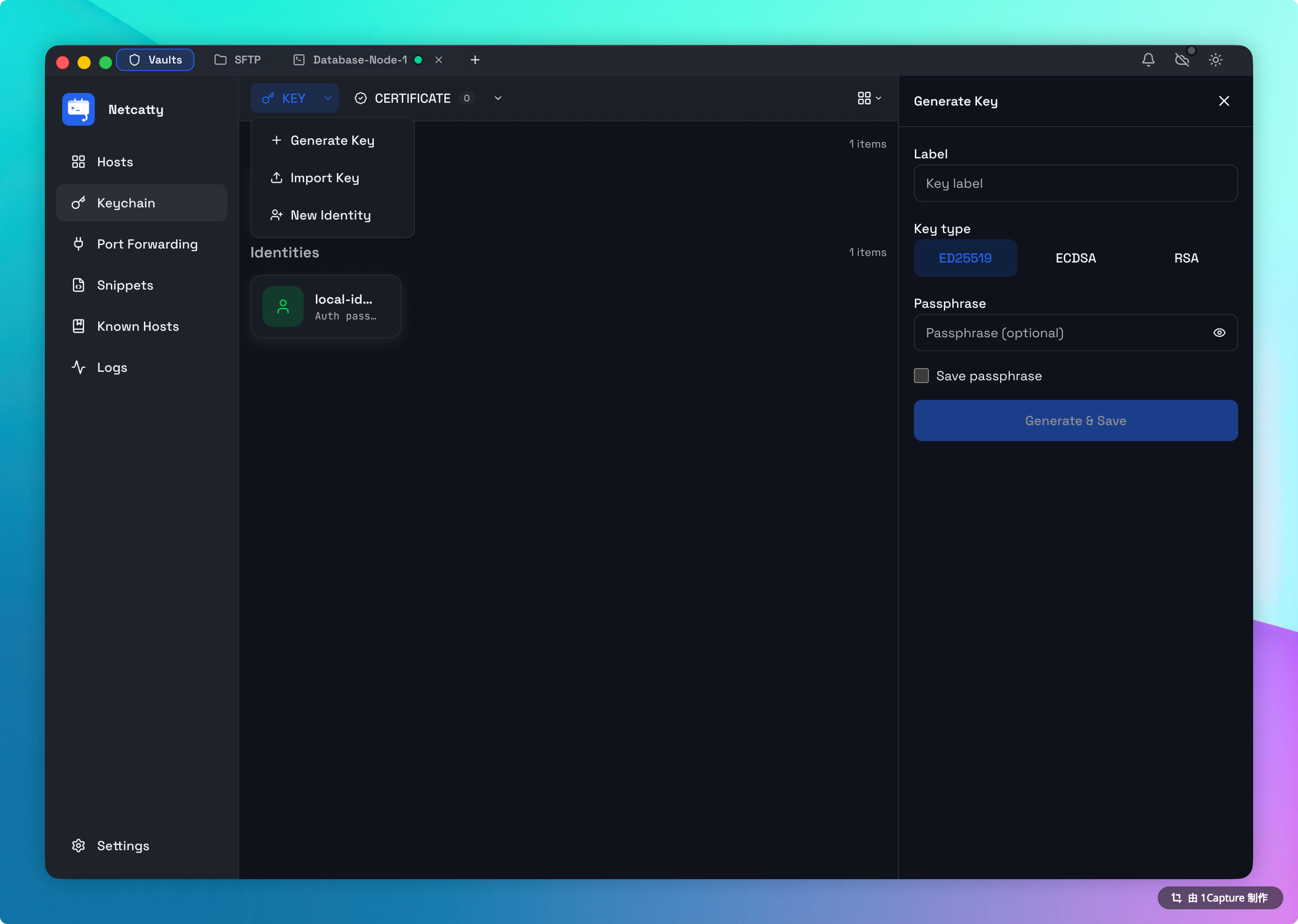
Netcatty includes a full-featured Key Generator backend. You no longer need to drop into a terminal to run ssh-keygen.
Supported Algorithms:
- ED25519 (Recommended): The modern standard. Fast, secure, and compact keys.
- ECDSA: NIST-standard elliptic curves (P-256, P-384, P-521).
- RSA: Supported for legacy systems (2048-bit minimum recommended, 4096-bit supported).
Importing Keys: You can drag-and-drop existing PEM, PKCS#8, or OpenSSH format private keys directly into the Keychain. Netcatty will parse them, validate the passphrase, and encrypt them into the Vault.
2. Passwords
While key-based auth is preferred, passwords are still common for initial setups or legacy hardware. When saved in an Identity, passwords are encrypted within your local Vault and are never displayed in plain text after entry.
3. SSH Agent (Global Integration)
Netcatty integrates with your system's native SSH Agent (ssh-agent on macOS/Linux, Pageant/OpenSSH on Windows). Unlike Identities, which store specific credentials, the Agent integration allows Netcatty to request signatures from keys managed by external hardware tokens (like Yubikeys) or OS-level security (TouchID/Windows Hello) without the app ever seeing the private key.
SSH Certificates (Enterprise)
For large teams, managing raw keys is unscalable. Netcatty supports Signed SSH Certificates.
The Workflow:
- Your organization has a Certificate Authority (CA).
- You generate a User Key.
- The CA signs your public key and gives you a
id_rsa-cert.pub. - In Netcatty:
- Load your Private Key.
- Attach the Certificate File to the Identity.
When connecting, Netcatty presents the Certificate first. The server validates the CA signature and allows access without needing your specific public key to be in ~/.ssh/authorized_keys.
Security Standards
Netcatty's commitment to security centers on user data sovereignty.
Zero-Knowledge Architecture
When using Cloud Sync, all sensitive fields (passwords, private key payloads) are encrypted using AES-256-GCM (Galois/Counter Mode) before they ever leave your device.
Master Key Derivation
For synchronized data, the encryption key is derived from your Master Password using PBKDF2 (Password-Based Key Derivation Function 2) with 600,000 iterations. This significantly increases the computational cost of brute-force attacks.
Loss of Master Password
Because we use Zero-Knowledge encryption, there is no 'Forgot Password' reset. If you lose your Master Password, your data is mathematically unrecoverable. We recommend storing it in a secure password manager (1Password, Bitwarden).
Best Practices
1. Use Passphrases on Keys
Even though Netcatty encrypts the key at rest, you should ideally generate keys with a passphrase. Netcatty will prompt you for this passphrase upon first connection (and can cache it in memory for the session). This provides "Defense in Depth".
2. Isolate Identities
Do not use the same Identity for your "Home Lab" and your "Work Production". Create separate Identities with distinct keys. This minimizes the blast radius if one key is compromised.
3. Rotate Credentials
Periodically rotate your keys.
- Generate a new Identity "Prod 2026".
- Use the Broadcast Mode to push the new public key to all servers.
- Update the Hosts to use "Prod 2026".
- Revoke the old key.
Troubleshooting
"Agent Connection Failed"
- macOS: Ensure
SSH_AUTH_SOCKis set in your environment. You may need to runssh-add -Kto load keys into the Apple Keychain integration. - Windows: Ensure the "OpenSSH Authentication Agent" service is running in
services.msc.
"Permissions too open" (Key File)
SSH is strict about file permissions. If you try to import a key file that is 0777 (world readable), Netcatty may reject it.
- Run
chmod 600 my_key.pembefore importing.