The Terminal
A high-performance, GPU-accelerated command center
The Terminal is where you spend 99% of your time. Netcatty's terminal is not a simple wrapper; it is a highly tuned implementation of xterm.js 5, leveraging WebGL acceleration to deliver a 60fps experience even under heavy load.
Rendering Engine
Most web-based terminals (and many Electron apps) suffer from "DOM thrashing" when processing fast output (like cat /var/log/syslog).
Netcatty uses a custom WebGL renderer with intelligent fallback.
- Architecture: Text is rendered as textures on a GPU canvas, bypassing the DOM layout engine entirely.
- Performance: Capable of sustaining >50MB/s of text throughput without freezing the UI.
- Smart Fallback: On systems where WebGL stability is an issue (or specifically on macOS to ensure perfect subpixel antialiasing), Netcatty automatically switches to a high-performance Canvas renderer.
- Ligatures: Full support for font ligatures (Fira Code, JetBrains Mono), rendered correctly across all engines.
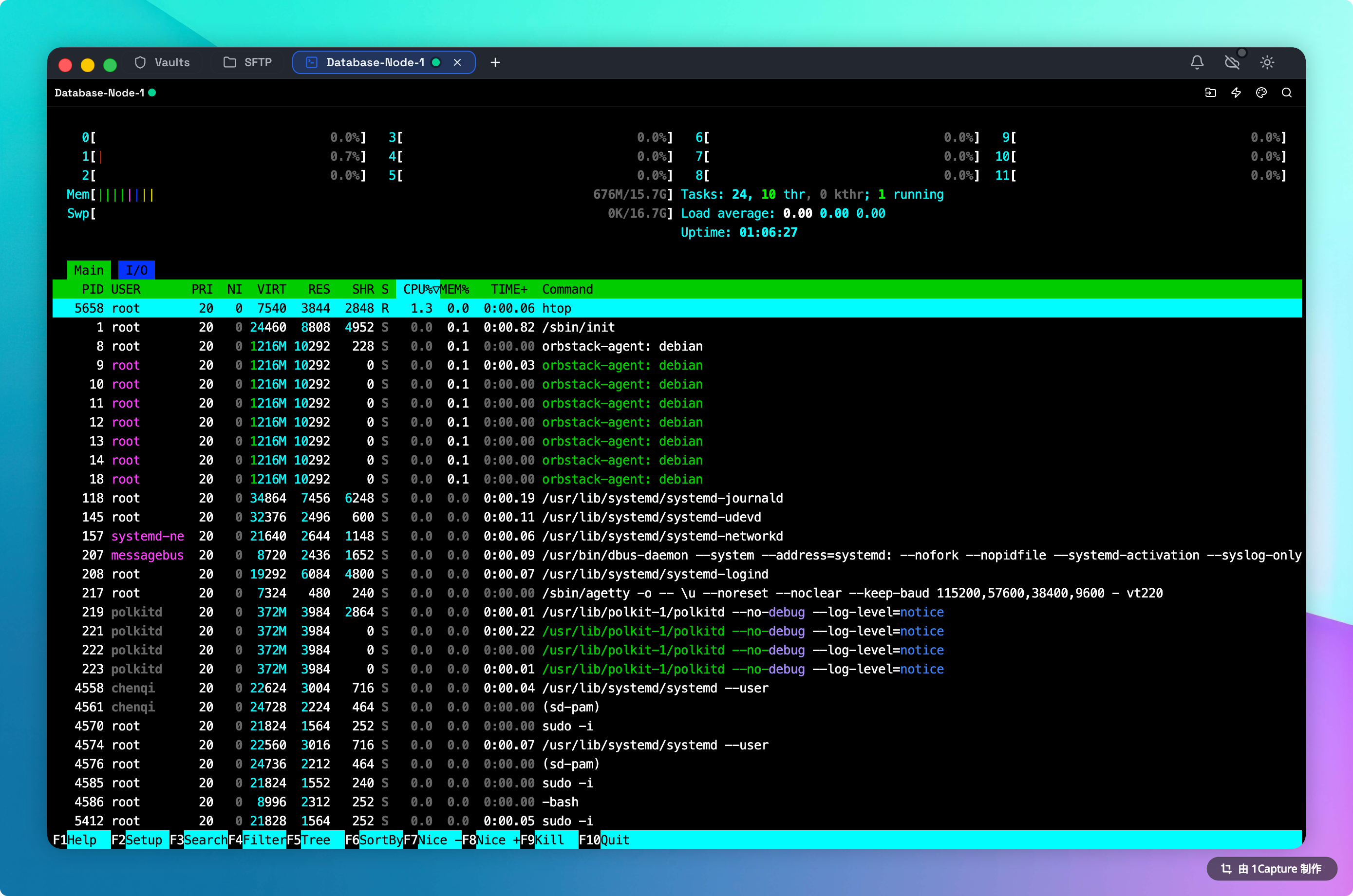
Window Management (Split Panes)
Netcatty abandons the traditional "Window per connection" model in favor of a Workspace model.
Splitting Strategies
You can tile your interface to monitor multiple contexts simultaneously.
-
Contextual Splits:
- Right-click a tab > Split Right.
- This creates a duplicate view of the current session properties (allowing you to connect to the same host again easily), or choose a different host.
- UseCase: Editing a config file in the left pane (
vim nginx.conf) while tailing the error log in the right pane (tail -f error.log).
-
Drag and Drop Docking:
- Grab any tab from the top bar.
- Drag it to the Center/Left/Right/Bottom of the viewport.
- Drop it to dock. You can create complex 2x2 or 3x1 grids this way.
Broadcast Mode (Cluster Management)
Broadcast Mode is a power-user feature that allows you to control multiple servers simultaneously.
The Workflow:
- Open 4 connections to your web servers (Web-01, Web-02, Web-03, Web-04).
- Arrange them in a 2x2 grid so you can see all of them.
- Click the Broadcast Icon (Radio Tower) in the toolbar.
- Visual Feedback: The Broadcast Icon in the toolbar will turn green, indicating that Input Synchronization is active.
- Type
uptime. You will see the characters appear on all 4 screens instantly.
The 'rm -rf' Danger
Broadcast mode is strictly "What You Type Is What You Send". If one server has a slightly different file structure, a command like rm * could be disastrous. Always verify servers are in a consistent state before broadcasting complex commands.
Theming & Appearance
Your terminal should look and feel like yours.
1. Color Schemes
Netcatty ships with 50+ industry-standard themes (Dracula, Nord, Monokai, Solarized).
- Switching: Go to Settings > Appearance > Terminal Theme. The change applies immediately to all open sessions.
- Custom Themes: You can import standard JSON theme definitions.
2. Fonts
- Family: We default to a sensible monospace, but you can use any font installed on your OS.
- Tip: Fonts like "MesloLGS NF" (for Powerlevel10k) work perfectly.
- Size & Line Height: Fine-tune the density. Increase line height (e.g., 1.2) for better readability, or decrease it (0.9) for maximum data density.
3. Cursor Styling
- Block (Standard)
- Bar (I-Beam)
- Underline
- Blinking options for all styles.
Search & Buffer
Scrollback Buffer
By default, Netcatty retains 10,000 lines of history per session.
- Configurable: You can increase this in Settings, but be aware that extremely large buffers (1M+ lines) consume significant RAM.
Smart Search
Press Cmd + F (Mac) or Ctrl + Shift + F (PC). The search bar allows you to quickly find text in the terminal buffer.
- Case Sensitivity: Matches are currently case-insensitive for maximum speed.
- Match Highlighting: Navigation between matches is instant, with the active match highlighted in a distinct color.
Keyword Highlighting
Netcatty includes a powerful Keyword Highlighting engine that processes terminal output in real-time.
- Automatic Detection: Predefined rules instantly highlight
ERROR,WARN,SUCCESS, andDEBUGlevels with distinct colors. - Network Artifacts: IP addresses and MAC addresses are automatically detected and colored to help them stand out in messy logs.
- Customization: You can define your own Regex-based rules in Settings > Terminal > Highlighting to monitor specific patterns unique to your workflow.
Troubleshooting
"Garbled Text / Weird Characters"
This is usually an encoding or font issue.
- Encoding: Netcatty defaults to UTF-8. If you are connecting to a legacy system using
ISO-8859-1orGBK, you may see replacement characters (). Check the "Encoding" setting in the Host Advanced tab. - Powerline Symbols Missing: If you see boxes instead of arrows/git icons in your shell prompt, you need to install a "Nerd Font" on your local machine and select it in Netcatty Settings.