
Data Logistics (SFTP Transfer)
Mechanics of file movement and conflict resolution
Moving data is critical. Netcatty's transfer engine is designed for reliability over raw speed, prioritizing data integrity.
Transfer Mechanics
The Queue System
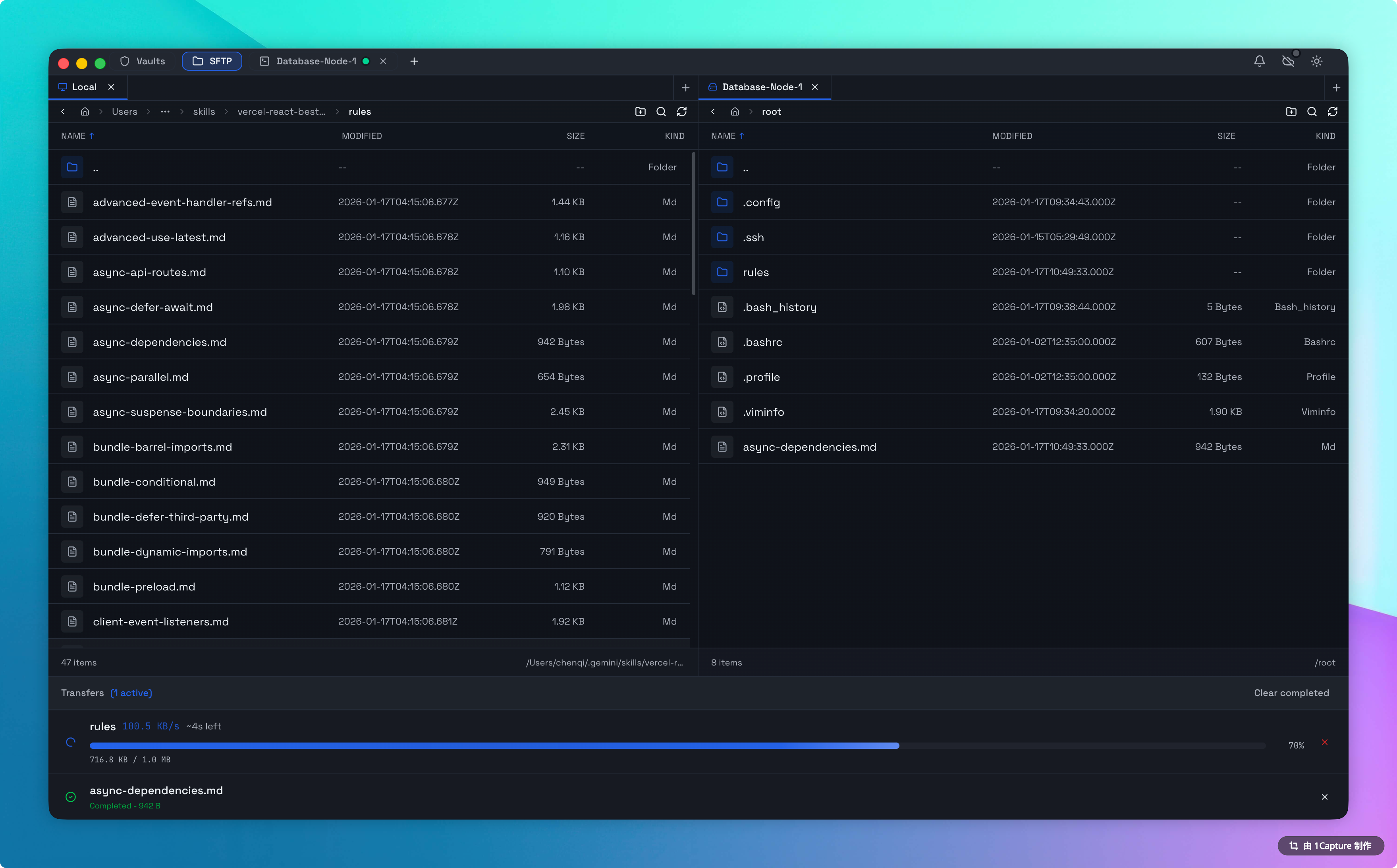
Netcatty does not block the UI during transfers.
- Background Worker: When you drag a folder, the operation is pushed to a background queue.
- Concurrency: By default, we transfer 4 files in parallel.
- Why limit it? SSH is a multiplexed protocol. Sending 100 files simultaneously over one TCP socket creates "Head-of-Line Blocking" and can cause the connection to time out.
- Visual Status: Pop open the Transfers Panel (bottom bar) to see:
- Progress bars for active files.
- Overall batch progress.
- Throughput (MB/s).
Conflict Logic (The Decision Matrix)
When a file already exists at the target destination, Netcatty prompts for a decision:
| Action | Logic | Use Case |
|---|---|---|
| Replace | Deletes the remote file and writes the new one. | Deploying a new build or updating a script. |
| Keep Both | Auto-appends a unique ID to the new file name (e.g., app (1).jar). | Making a quick backup or saving a different version. |
| Skip | Ignores the file and cancels this specific transfer. | Syncing a folder where you only want new files. |
Symlinks & Special Files
Unix file systems use special file types that require specific handling:
- Symlinks: Netcatty displays symlinks with a shortcut icon. Double-clicking them navigates to the target destination.
- Transferring Symlinks: Netcatty attempts to resolve and copy the content of symlinks during transfers.
- Sockets/Pipes: Named pipes (
|) and sockets (=) are displayed with distinct icons but are not transferrable.
Permission Errors
"Upload Failed: Permission Denied". This is the #1 error in SFTP.
- Diagnosis: Look at the path bar. Are you in
/rootor/var/www? - The Sudo Problem: SFTP (the protocol) does not support sudo. You are logged in as your user (e.g.,
ubuntu). You cannot write to a root-owned directory, even if you have sudo access in the terminal. - Workaround:
- Upload to your home directory (
/home/ubuntu). - Open Terminal.
- Run
sudo mv ~/file /var/www/.
- Upload to your home directory (
Recursive Delete
Deleting a folder via SFTP performs a recursive delete (rm -rf). This is instant and irreversible. There is no "Trash Can" on a remote Linux server.