
SFTP (File Transfer)
Secure, visual file management operations
The Secure File Transfer Protocol (SFTP) is a subsystem of SSH. Unlike FTP (which is insecure) or FTPS (which requires complex certificate handling), SFTP runs over your existing SSH tunnel. Netcatty integrates a robust, dual-pane SFTP client directly into the interface.
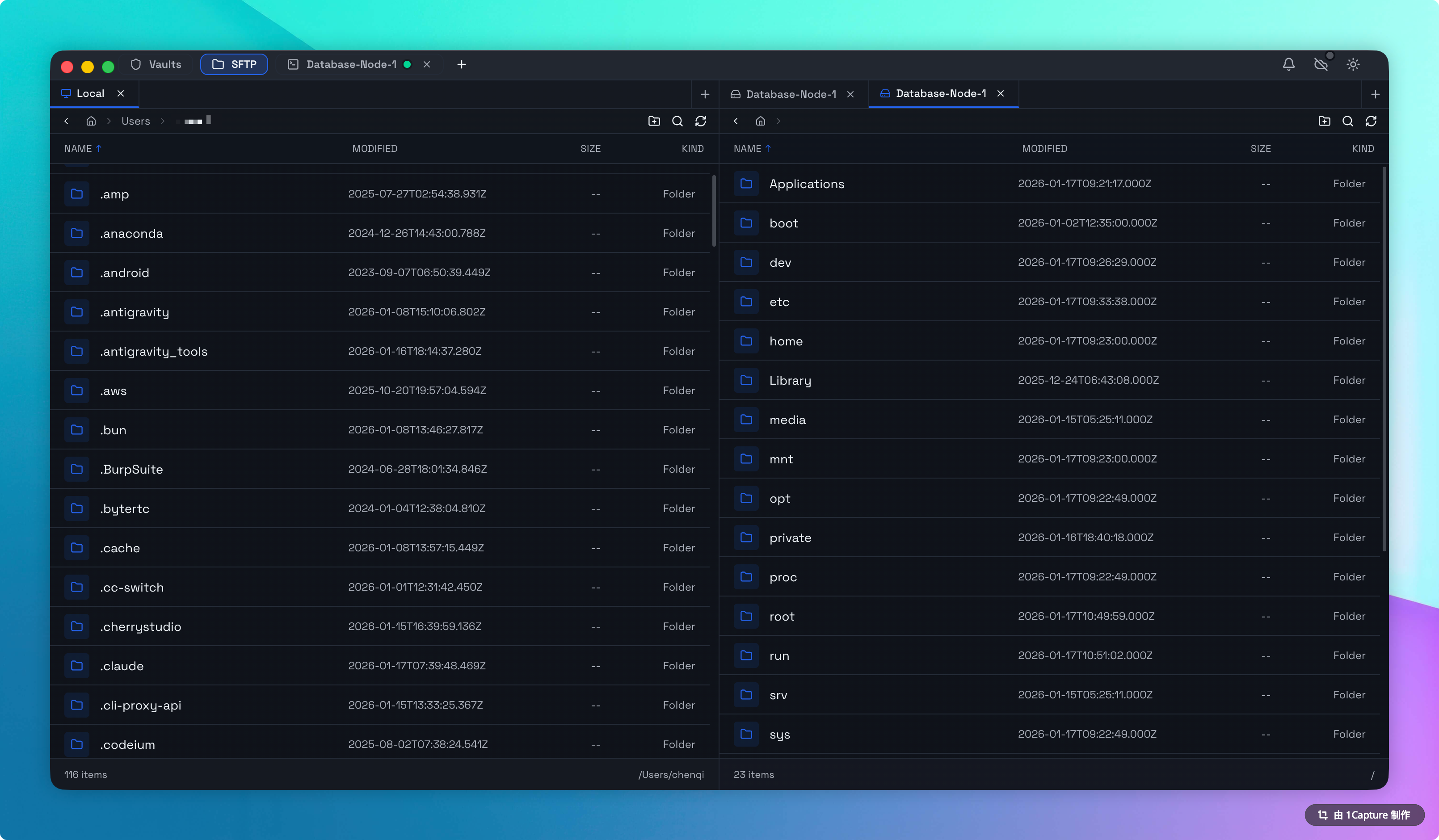
The Dual-Pane Interface
Inspired by classic tools like Norton Commander and Total Commander, Netcatty uses a Source / Destination model.
- Left Pane: Typically your Local File System.
- Right Pane: The Remote Server.
However, these are flexible. You can navigate; the context is indicated by the path bar at the top of each pane.
File Operations
Basic Transfer
Drag and Drop is the primary mechanic.
- Upload: Drag from Left (Local) to Right (Remote).
- Download: Drag from Right (Remote) to Left (Local).
- External Drop: You can also drag files from your OS desktop directly onto the Remote pane to upload, or drag from Remote to your desktop to download.
Advanced: Remote-to-Remote Transfer
Netcatty supports transferring files between two different remote servers without downloading them to your disk first.
The Workflow:
- Connect to Server A. Open SFTP.
- In the Left pane, instead of Local, use the "Connect" dropdown to select Server B.
- You now see Server B (Left) and Server A (Right).
- Drag a file across.
- Technical Note: Netcatty "pipes" the data securely through your local memory (
Stream A -> Local Memory -> Stream B). The data is not written to your local hard drive, ensuring speed and security.
Conflict Resolution
When a file already exists, Netcatty prompts for a decision:
- Replace: Overwrite the target file with the new one.
- Keep Both: Auto-append a unique identifier to the new file name (e.g.,
file (1).txt). - Skip: Do nothing and cancel the specific file transfer.
Bulk Actions
If you are transferring a folder with multiple conflicts, you can check Apply to all to resolve all remaining conflicts with the same decision.
Editing Files (The Built-in Editor)
You don't need to leave Netcatty to modify configuration files or scripts.
- Right-click a remote file (e.g.,
nginx.conf). - Select Edit.
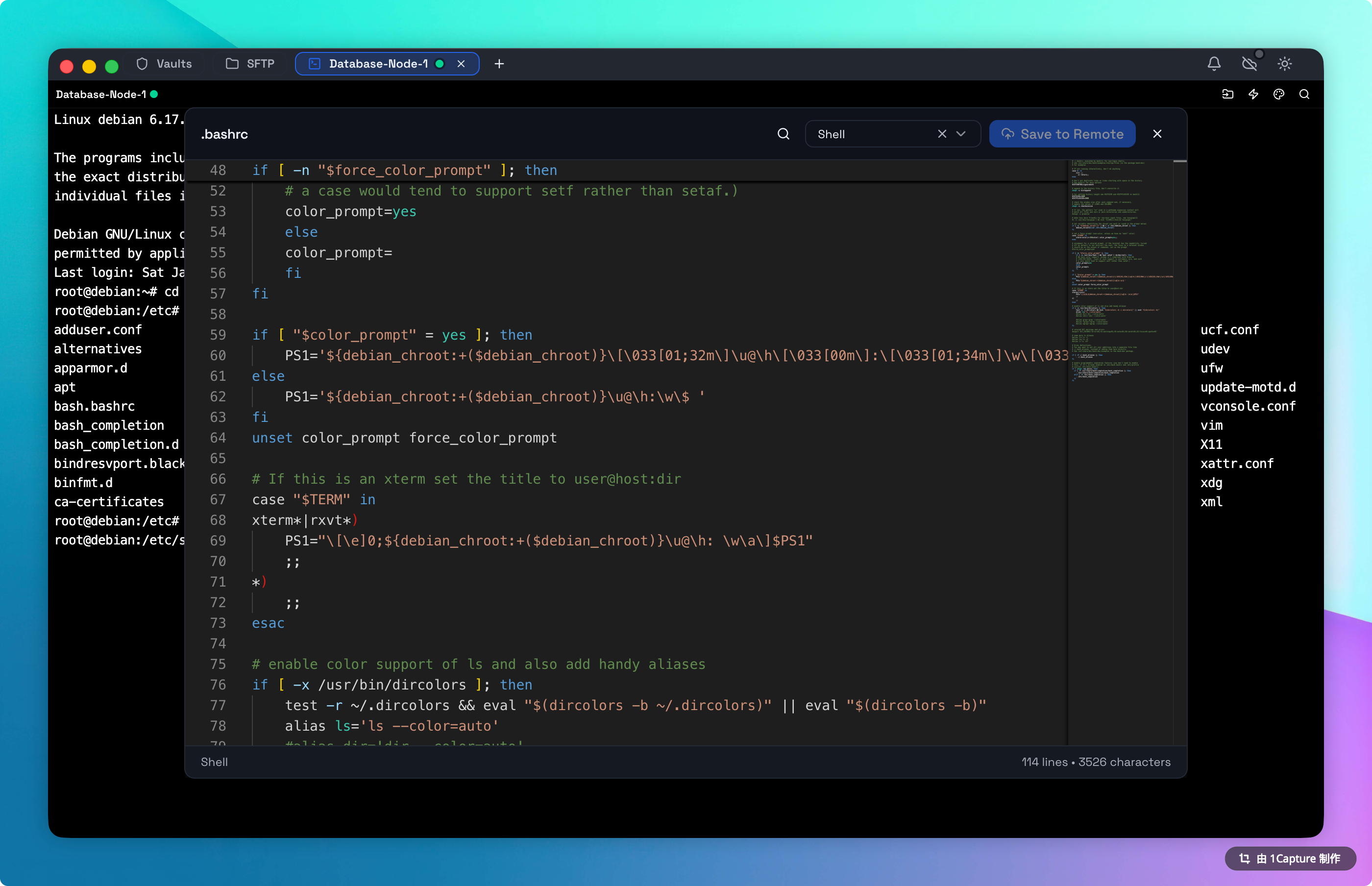
- Netcatty opens the file in a built-in Monaco-based editor (the same engine powering VS Code).
- Syntax Highlighting: Supports over 40 languages including Javascript, Python, Shell, YAML, and Dockerfiles.
- Direct Save: Press
Cmd+S(Mac) orCtrl+S(Win) to securely upload changes directly back to the server. - Search & Replace: Full search support within the editor modal.
Permission Management
SFTP allows you to modify UNIX file permissions.
- Right-click a file/folder.
- Select Properties.
- You will see a visual chmod grid (Read/Write/Execute for Owner/Group/World).
- You can also type the octal code (e.g.,
755or600) directly. - Recursive Apply: For folders, you can choose to apply these permissions to all children.
Hidden Files
By default, "dotfiles" (.bashrc, .env) are hidden to reduce clutter.
- Toggle: Click the Eye Icon in the toolbar to show/hide hidden files.
Troubleshooting
"Permission Denied"
If upload fails:
- Check the "Owner" column in the file list. Does the connected user have write access to this directory?
- Try uploading to
/tmp/first to verify connectivity, thenmvvia terminal usingsudo.
"Transfer Slow"
SFTP is encrypted, which adds CPU overhead.
- Small files (thousands of 1KB files) are slow due to protocol handshake latency.
- Recommendation: For massive directory transfers, it is infinitely faster to
tar -czfthe folder on the server via Terminal, download the single.tar.gzfile via SFTP, and extract it locally.