
Installation & Setup
Comprehensive guide for deploying Netcatty across all platforms
Netcatty is a truly cross-platform application, built on Electron and React. We maintain first-class support for macOS (Apple Silicon & Intel), Windows 10/11, and modern Linux distributions.
This guide covers the installation process, post-install configuration, and troubleshooting for each platform.
macOS Installation
Mac users, especially those in the DevOps space, are our primary demographic. We support macOS Catalina (10.15) and newer.
Method 1: DMG (Recommended)
The .dmg (Disk Image) is the standard distribution format.
Download
Visit the GitHub Releases page. Download the DMG for your architecture:
- Apple Silicon (M1/M2/M3/M4):
Netcatty-x.x.x-mac-arm64.dmg - Intel Mac:
Netcatty-x.x.x-mac-x64.dmg
Install
Double-click the downloaded .dmg file.
Drag the Netcatty icon into the Applications folder shortcut.
The Gatekeeper Bypass
Unsigned Binary Warning
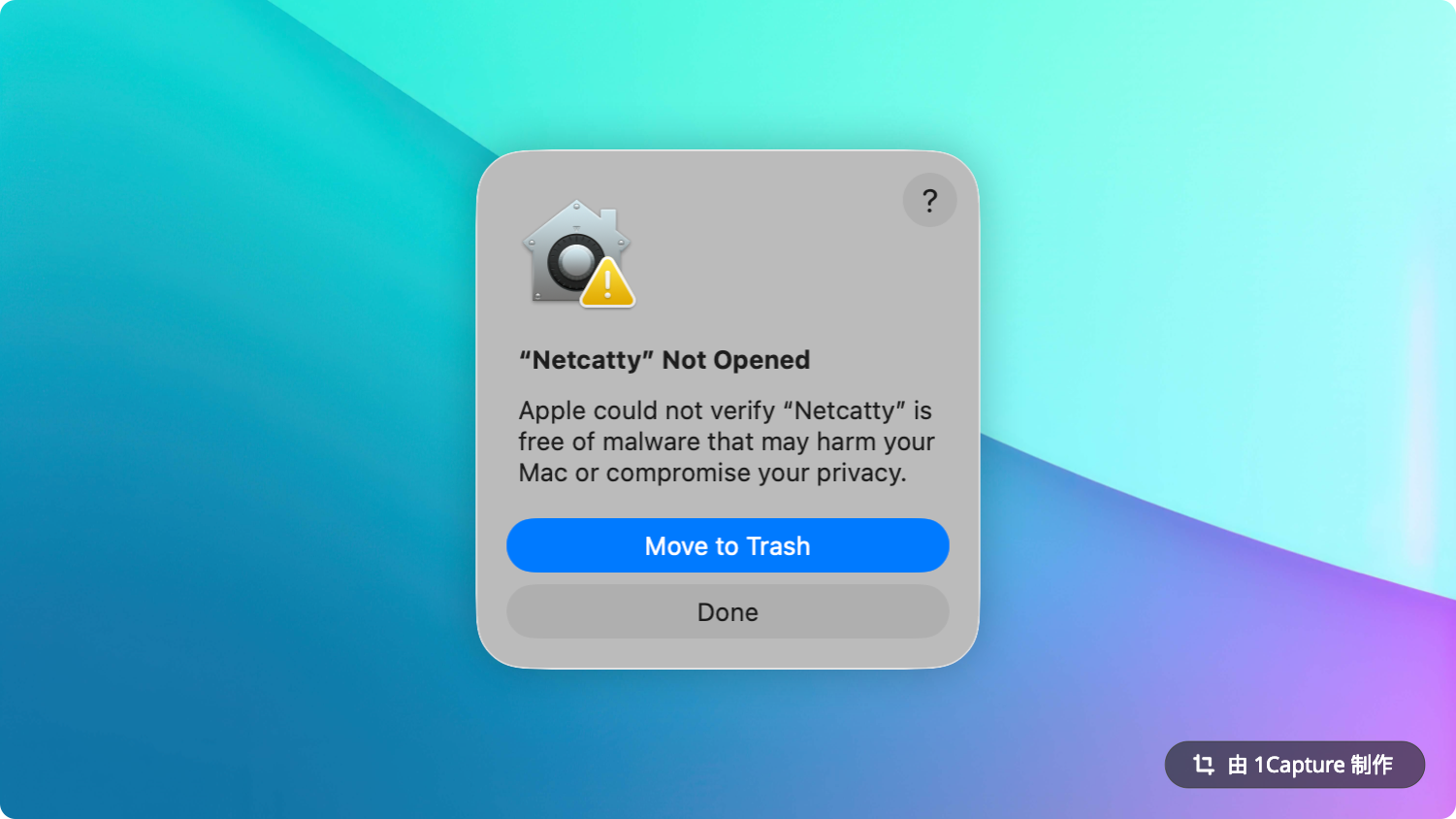
As an open-source project, we currently do not pay Apple the $99/year developer fee to notarize the app. macOS Gatekeeper will block the app by default, saying "It cannot be checked for malicious software."
The Fix:
- Open your Terminal (
Cmd+Space, type "Terminal"). - Run the following command to remove the "Quarantine" attribute:
xattr -cr /Applications/Netcatty.app - Now open Netcatty normally. It will launch without issues.
Method 2: Homebrew (Unofficial)
While we don't maintain an official Cask currently, you can install manually if you prefer CLI management.
(Note: Instructions for eventual brew install --cask support will be added here).
Windows Installation
We support Windows 10 (Build 1809+) and Windows 11.
Method 1: NSIS Installer (.exe)
This is the standard wizard-based installer.
- Download:
Netcatty-Setup-x.x.x.exe - Privileges: Does not require Administrator check. Installs to
%LOCALAPPDATA%\Programs\netcatty. - Auto-Update: Supports background auto-updates.
Method 2: Portable Mode (Directory)
For users on restricted corporate laptops where installation is blocked.
- Download:
Netcatty-x.x.x-win-x64.zip(or extract from thewin-unpackeddirectory in releases) - Usage: Extract to any folder and run
Netcatty.exedirectly. - Data Storage: Creates a
datafolder in your user profile. You can copy the entire folder to a USB drive to carry your Vault with you.
Linux Installation
We treat Linux as a first-class citizen.
Method 1: AppImage (Universal)
Works on Arch, Ubuntu, Fedora, CentOS, OpenSUSE, etc.
- x86_64: Download
Netcatty-x.x.x-linux-x64.AppImage - ARM64 (Raspberry Pi, etc.): Download
Netcatty-x.x.x-linux-arm64.AppImage
chmod +x Netcatty-*.AppImage
./Netcatty-*.AppImage
Method 2: Debian/Ubuntu (.deb)
- x86_64: Download
Netcatty-x.x.x-linux-x64.deb - ARM64: Download
Netcatty-x.x.x-linux-arm64.deb
sudo dpkg -i Netcatty_*.deb
# or
sudo apt install ./Netcatty_*.deb
Method 3: RPM (Fedora/RHEL)
- x86_64: Download
Netcatty-x.x.x-linux-x64.rpm - ARM64: Download
Netcatty-x.x.x-linux-arm64.rpm
sudo rpm -i Netcatty-*.rpm
# or
sudo dnf localinstall Netcatty-*.rpm
App Data Locations
If you need to backup manually or migrate your data, here is where Netcatty stores its database and settings:
| Platform | Path |
|---|---|
| macOS | ~/Library/Application Support/netcatty/ |
| Windows | %APPDATA%\netcatty\ |
| Linux | ~/.config/netcatty/ |
Inside this folder:
- Database: Local data is stored using the system's standard application storage.
- Sync Payload:
netcatty-vault.json(The encrypted package used for Cloud Sync). - Logs:
logs/directory contains runtime debug information.
Troubleshooting Installation
"GPU Process Crashed" (Linux)
Some older Linux GPU drivers conflict with Electron's hardware acceleration.
Fix: Launch with --disable-gpu.
./Netcatty --disable-gpu"Code Signature Invalid" (macOS)
If the app crashes immediately on launch on macOS:
- Ensure you moved it to
/Applications. Running directly from the Downloads folder often triggers "App Translocation" security mechanisms which break resource loading. - Re-run the
xattr -crcommand.
"Antivirus False Positive" (Windows)
Because our installer is not signed with an EV Certificate (which costs ~$400/year), Windows Defender SmartScreen might show a "Windows protected your PC" popup. Fix: Click "More Info" -> "Run Anyway". This usually only happens for the first few users of a new release version until Microsoft's reputation system learns it is safe.